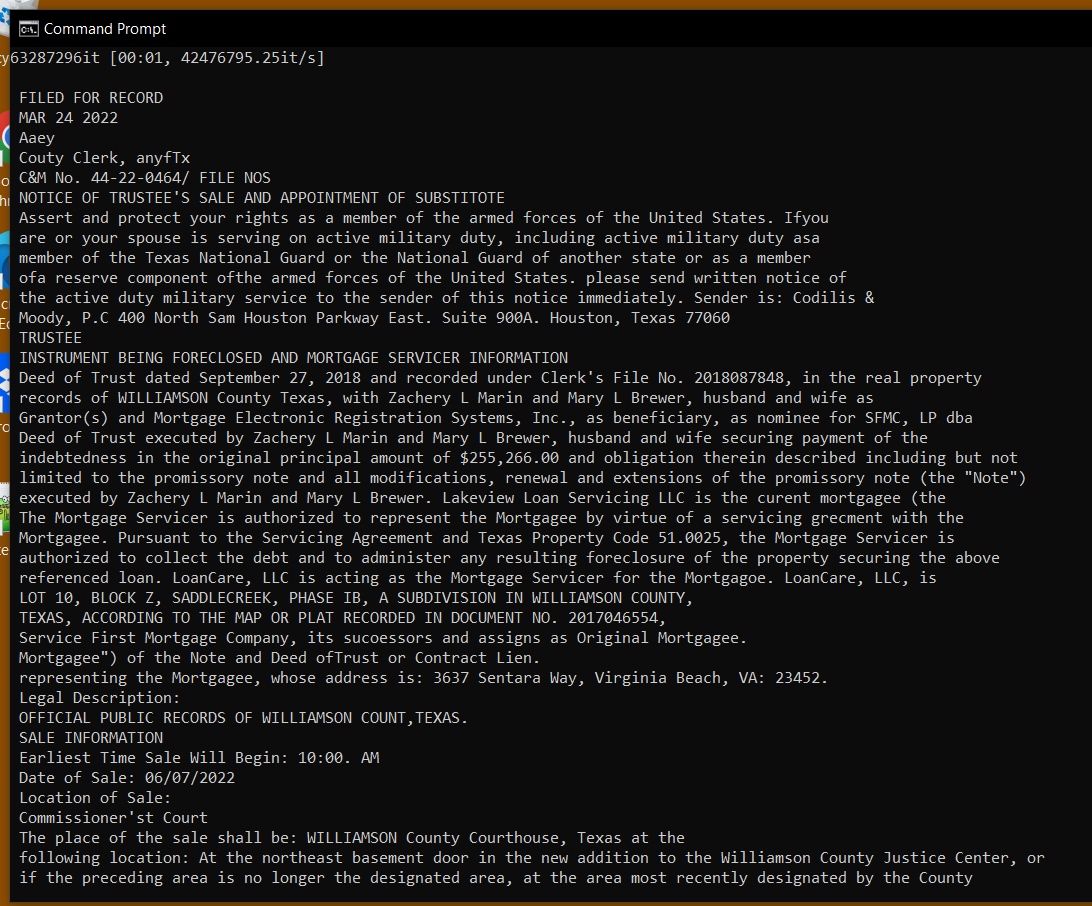
The first step in speeding up the process would have to be converting the PDF files to text. Once that is done I could write simple rules in Python to parse them. E.g. search for "borrower" or "grantor" which are strings likely to be adjacent to the person's name who took out the mortgage.
A little Googling led me to a Python library called Python docTR:
https://mindee.github.io/doctr/
https://pypi.org/project/python-doctr/
It uses PyTorch and Tensor Flow machine learning frameworks to perform OCR (optical character recognition) on images. It looked promising, even though a lot of the documentation was over my head. After I started the process of installing it I hit a couple of snags. The following steps are mainly taken from the Python DocTR webpage but I added a few helpful hints on getting past problems, and then parsing the JSON output that docTR gives you.
Note: the system I was using for this was a Samsung Galaxy notebook running Windows 10 and Python 3.10.
GTK
1) The docs tell you to install GTK for Windows from this URL:
https://github.com/tschoonj/GTK-for-Windows-Runtime-Environment-Installer/releases
Installing PyTorch
2) Type CMD to open a windows command line and mkdir blah1, then CD to blah1 (or whatever you want to call your project folder)
3) Type python -m venv env to setup a virtual environment
4) Type .\env\scripts\activate
5) Go to pytorch.org and scroll down to where there is a matrix you can use to select what kind of installation you want.
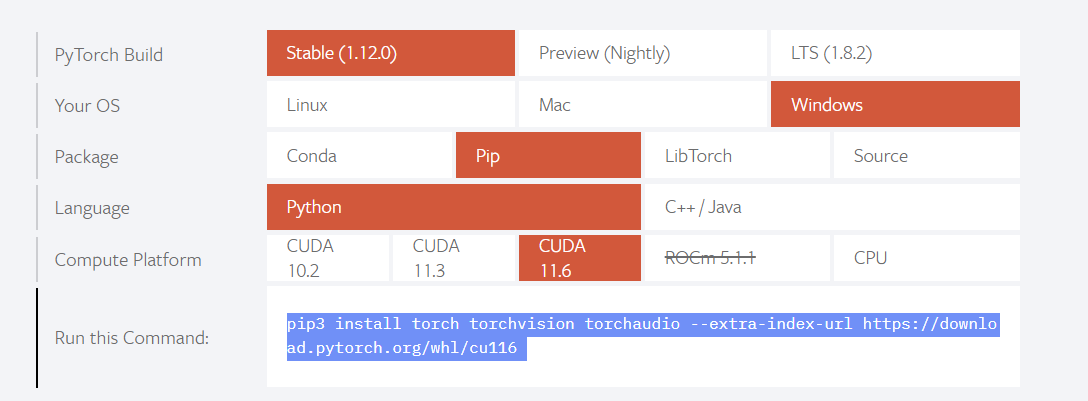
In my case I got:
pip3 install torch torchvision torchaudio --extra-index-url https://download.pytorch.org/whl/cu116
And entered it into the command line.
Installing Python docTR
6) Type pip install python-doctr
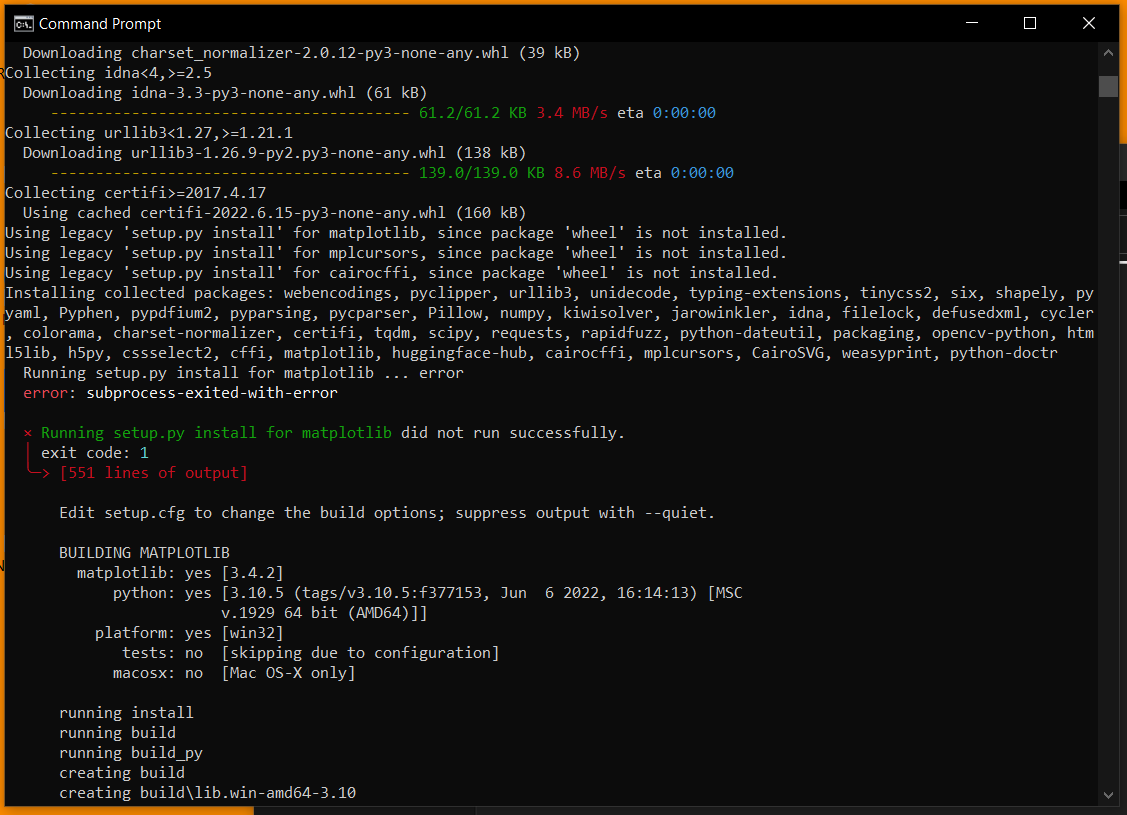
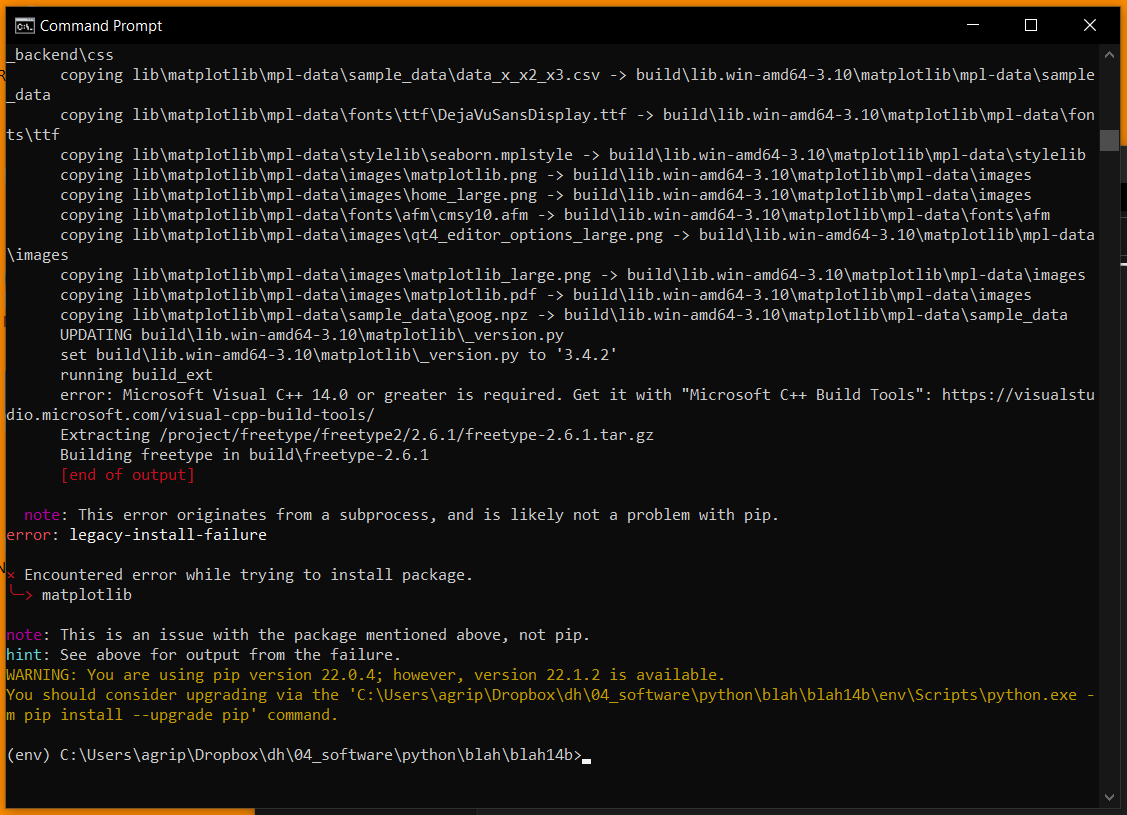
The result I got from this is that one of the dependencies (MatPlotLib) failed to install. There was an error telling me I needed Visual C++ 14 (screenshots below).
7) Download Visual Studio Community
8) In the Visual Studio Installer program, when you get to the Workloads screen, select "Desktop Development with C++"
Sometimes the installer acts weird. I would run the executable and it would start up and then just disappear. The workaround is to go to Add or Remove Programs --> Microsoft Visual Studio --> Modify. That will take you to the Workloads screen.
9) Go back to the command line and run pip install python-doctr again.
10) Next, you can use a quick and dirty Python script I wrote to get your first output. What it gives you is a JSON file with a lot of metadata about each string it pulls from the image.
import numpy as np
from doctr.models import ocr_predictor
from doctr.io import decode_img_as_tensor
import json
model = ocr_predictor('db_resnet50', 'crnn_vgg16_bn', pretrained=True)
img = '04-26-2022_File_006-1.png'
f = open(img,'rb')
img = decode_img_as_tensor(f.read())
out = model([img])
ooo = out.export()
ppp = json.dumps(ooo['pages'][0]['blocks'])
qqq = json.loads(ppp)
print(qqq)
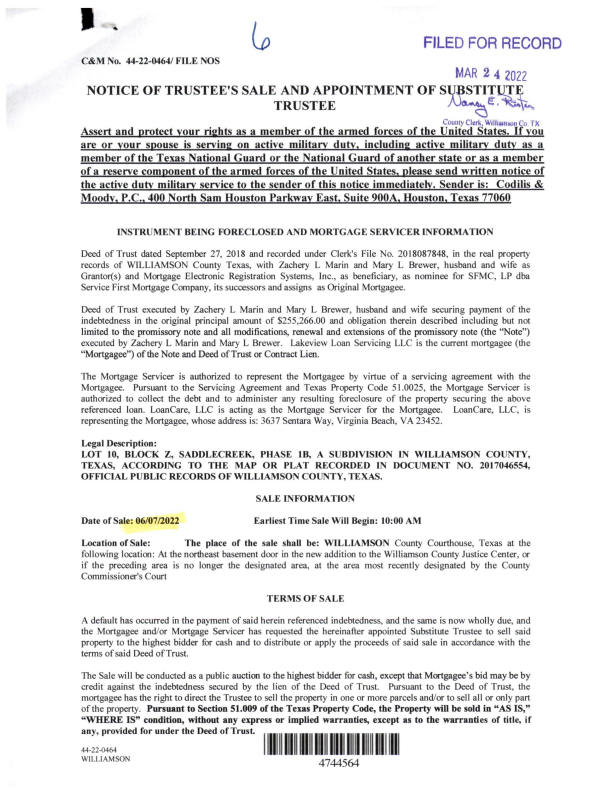
Here's the image file I used:
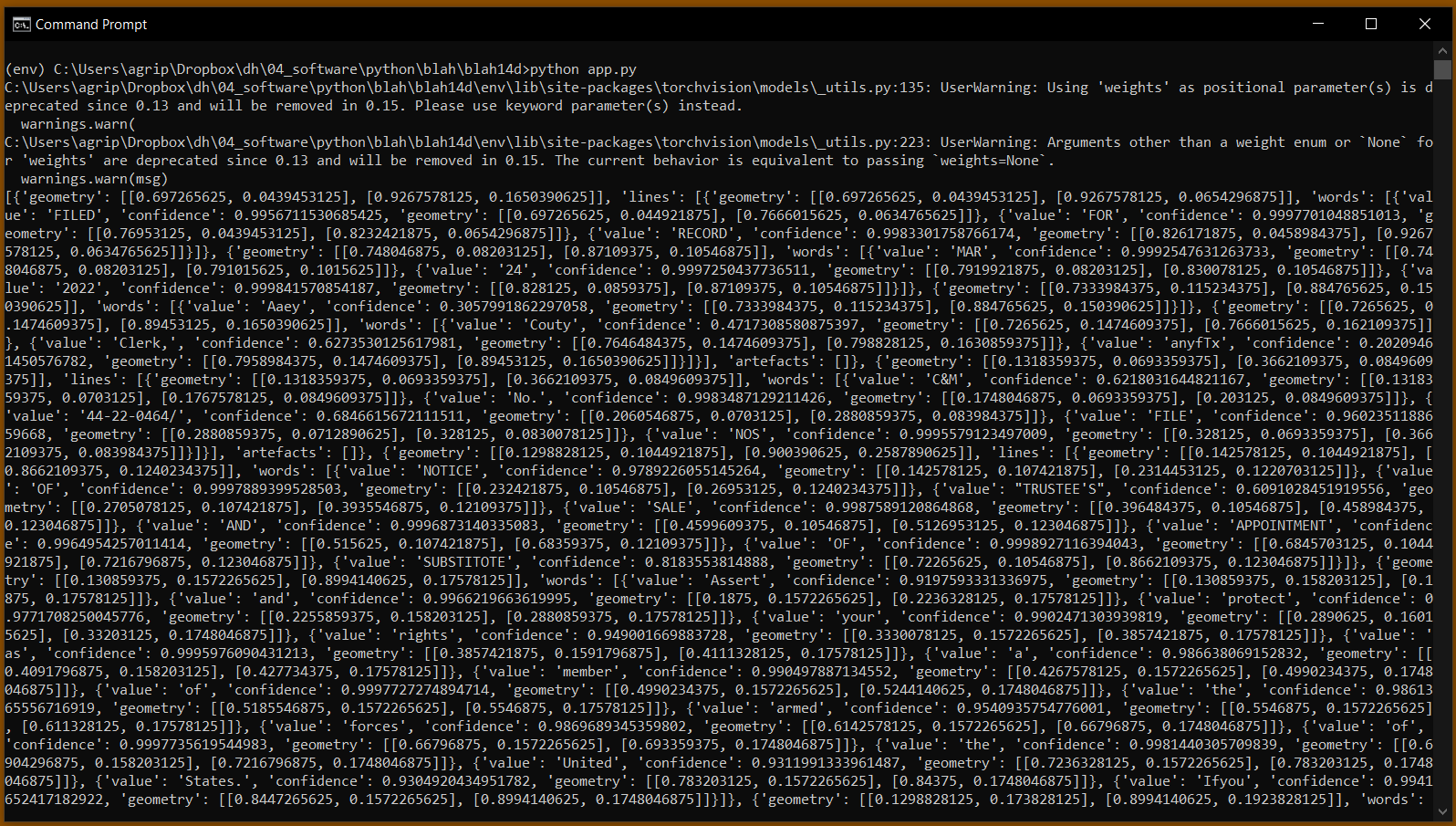
11) All I really want out of it right now is the raw text, so I added a few lines of code that would pull that out and string all the words together.
import numpy as np
from doctr.models import ocr_predictor
from doctr.io import decode_img_as_tensor
import json
model = ocr_predictor('db_resnet50', 'crnn_vgg16_bn', pretrained=True)
img = '04-26-2022_File_006-1.png'
f = open(img,'rb')
img = decode_img_as_tensor(f.read())
out = model([img])
ooo = out.export()
ppp = json.dumps(ooo['pages'][0]['blocks'])
qqq = json.loads(ppp)
print(qqq)
text = ""
for block in qqq:
for line in block['lines']:
text = text + "\r\n"
for word in line['words']:
text = text + " " + word['value']
print(text)